




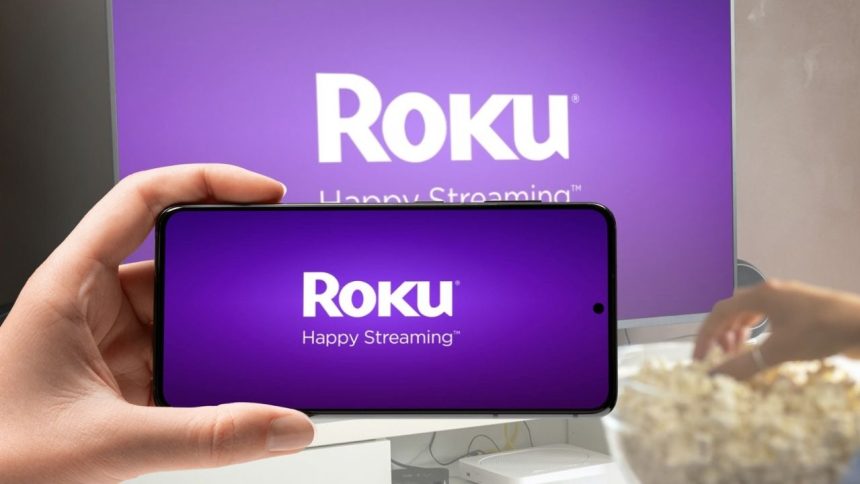
Casting to a Roku device lets you send videos, movies, or TV shows from your phone or tablet to your TV. It’s a great way to watch on the big screen without interruption on your small device.
What is Casting?
Casting means sharing the content you’re watching on your mobile device with your TV using a Roku device. Apps like Netflix, YouTube, and Spotify support this feature. If you see a cast icon (a TV with a wireless signal) in the app, you can use it to display the content on your TV.
Before You Begin
Make sure your phone/tablet and Roku device are connected to the same Wi-Fi network. Your Roku device should be set to “discoverable” by other devices.
How to Cast to Roku from Mobile Device
- Install the channel app on your Roku and your mobile device (e.g., Netflix, YouTube).
- Open the app on your mobile device.
- Tap the cast icon and select your Roku device from the list.
- The video will start playing on your TV, and you can control playback either from your mobile device or the Roku remote.
Casting vs. Screen Mirroring
Casting streams content from a compatible app and lets you use your phone for other tasks while watching. Screen mirroring duplicates your mobile screen to the TV, showing everything happening on your device in real time. Screen mirroring is useful for apps that don’t support casting or sharing media from your phone’s gallery.
Screen Mirroring Setup
- On Android, use the “Cast” or “Smart View” option in your quick settings and select your Roku device.
- On iPhone or iPad, use Apple AirPlay to connect to compatible Roku streaming devices.
Casting with Roku is easy and lets you enjoy your favorite shows, movies, and music on a larger screen seamlessly.