






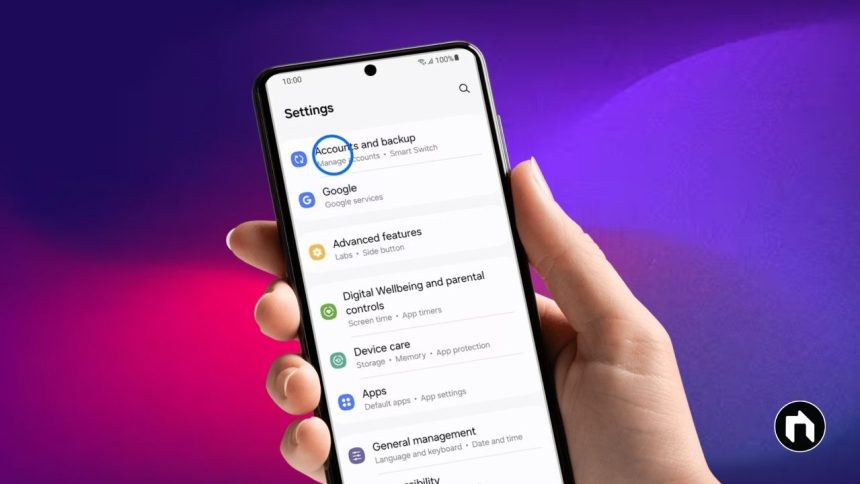
A Samsung account is more than just a login—it connects all your Galaxy devices and gives you access to features like SmartThings, Samsung Pay, Samsung Cloud, and device syncing. It also makes it easier to back up data, restore information, and keep everything safe with two-step verification. Here’s a simple guide to help you set up, sign in, and manage your Samsung account.
Contents
Why You Need a Samsung AccountSet Up Your Samsung Account on Phone or TabletCreate or Manage Your Account on a ComputerUsing a Samsung Account on Your Smart TVVerify Your Account with EmailTwo-Step Verification for Extra SecurityChange Account Details or PasswordLog Out or Remove Your AccountDelete Your Samsung Account
Why You Need a Samsung Account
- Access exclusive Samsung apps and services.
- Sync and back up data between your phone, tablet, or TV.
- Stay protected with security features such as two-step verification.
- Easily reset your ID or password if you forget it.
Set Up Your Samsung Account on Phone or Tablet
- Open Settings and tap Samsung account at the top.
- Enter your email or phone number if you already have an account, or tap Create account.
- Follow the steps to sign in or register. You may need to complete two-step verification.
- Agree to the terms and policies.
- Verify your phone number with the code sent to you.
- Update your profile information, like nickname or birth date.
- You’ll also receive a verification email—confirm it to finish setup.
Create or Manage Your Account on a Computer
- Go to the official Samsung website using any browser.
- Click the profile icon (top-right corner) and choose Log in / Sign up.
- Sign in with your email or Google, or create a new account.
- Enter the verification code sent to you.
- Once logged in, go to Manage Samsung Account to edit personal details like name, phone number, or language.
Using a Samsung Account on Your Smart TV
- On your TV, go to Settings > General > System Manager > Samsung Account.
- Select Login, enter your ID and password, and confirm with the verification code sent to your phone.
- To update information, return to System Manager > Samsung Account > My Account and edit personal details.
Verify Your Account with Email
- After signing up, check your email inbox for a Samsung verification mail.
- Open the email and tap Account Verification.
- If not in your inbox, check the spam folder.
Two-Step Verification for Extra Security
- Every login requires a verification step.
- You will get a security notification or SMS code on your registered device.
- You can also use an authenticator app or backup codes for signing in.
Change Account Details or Password
- To reset your password, use the Reset password option on the login page or visit the Samsung password reset website.
- To change an existing password: open Settings > Your name > Security and privacy > Password, then enter your old and new password.
Log Out or Remove Your Account
- On phone or tablet: Settings > Your name > Sign out.
- On computer: open the Samsung website, click your profile name, and choose Log out.
- Remember: logging out removes synced data from the device.
Delete Your Samsung Account
Deleting your account will permanently erase your purchase history, cloud data, and subscriptions.
- Visit the Samsung website and log in.
- Go to Manage Samsung Account > Delete account.
- Review the terms and confirm deletion.
A Samsung account is the key to unlocking the full Galaxy experience, from payments and backups to smart home control. Make sure you keep your account details updated and secure.