




QR codes are everywhere today, providing quick access to websites, apps, payment gateways, product info, and more by simply scanning with your phone. If you have an Android device, scanning QR codes is usually quick and easy, often requiring no additional apps. This guide covers all you need to know to scan QR codes reliably on Android, whether your phone is new or older.
What Are QR Codes?
QR (Quick Response) codes are square barcodes that store information like URLs or text. Scanning them with a smartphone camera reveals this information instantly, letting you access links, Wi-Fi passwords, contact details, or make payments quickly.
Method 1: Using Your Android Phone’s Camera
Most modern Android phones have QR code scanning built directly into the camera app. Here’s how to use it:
- Open the Camera app on your phone.
- Point the camera steadily at the QR code you want to scan.
- Hold the camera view on the QR code for 2-3 seconds until a notification or link appears on the screen.
- Tap the notification or link to open the website or relevant app connected to the QR code.
If your camera doesn’t detect QR codes automatically, check the camera settings and enable Scan QR codes or a similar option.
Method 2: Using the Quick Settings Panel
Some Android devices include a quick access QR code scanner in the notification shade:
- Swipe down twice from the top of the screen to open Quick Settings.
- Look for the Scan QR code button and tap it.
- Point your camera at the QR code and wait for it to scan.
- Tap the prompt to open the QR code content.
If you don’t see this option, you can often add it by tapping the Edit or pencil icon in Quick Settings and enabling the QR scanner tile.
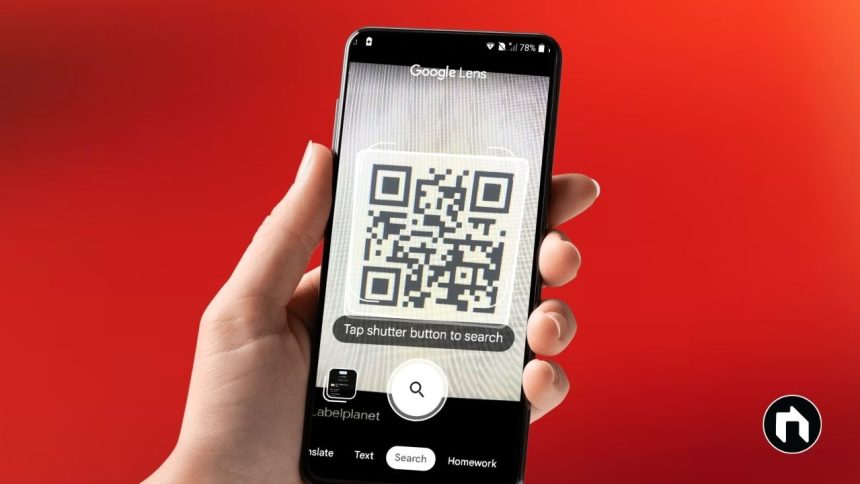
Method 3: Using Google Lens
Google Lens is a powerful visual search tool that also scans QR codes. It’s integrated into many devices and the Google app:
- Open the Google Lens app or access it via the Google Assistant.
- Point the camera at the QR code.
- Google Lens will recognize it and show the content or link associated.
- Tap to open.
If you don’t have the app, download Google Lens for free from the Google Play Store.
Method 4: Using Third-Party QR Code Scanner Apps
If your phone’s camera or quick settings don’t support QR code scanning, you can download free QR scanner apps from the Play Store, such as QR Code Reader or QR & Barcode Scanner. These apps provide dedicated scanning features with additional tools for managing codes.
Scanning QR Codes from Images or Screenshots
If you have a QR code saved as an image on your phone (in gallery, browser, or messages), scanning can be trickier. Google Lens or third-party apps can scan QR codes from saved images:
- Open the Google Lens app and select the gallery icon to pick the QR code image.
- The app will analyze and detect the QR code and provide the result.
Tips for Successful QR Code Scanning
- Make sure the camera lens is clean and unobstructed.
- Hold your phone steady while scanning.
- Ensure good lighting on the QR code.
- If scanning a screen, reduce glare by adjusting angle or brightness.
Troubleshooting
If your camera can’t scan QR codes:
- Double-check that QR code scanning is enabled in camera settings.
- Restart your phone.
- Update your Android OS and camera app.
- Use Google Lens or a third-party QR scanner app as a backup.
Scanning QR codes on Android is intuitive and fast with built-in camera features or Google Lens. For older or unsupported devices, third-party apps offer a reliable alternative. With a few taps, you can unlock the power of QR codes for websites, payments, Wi-Fi, contact sharing, and much more.