








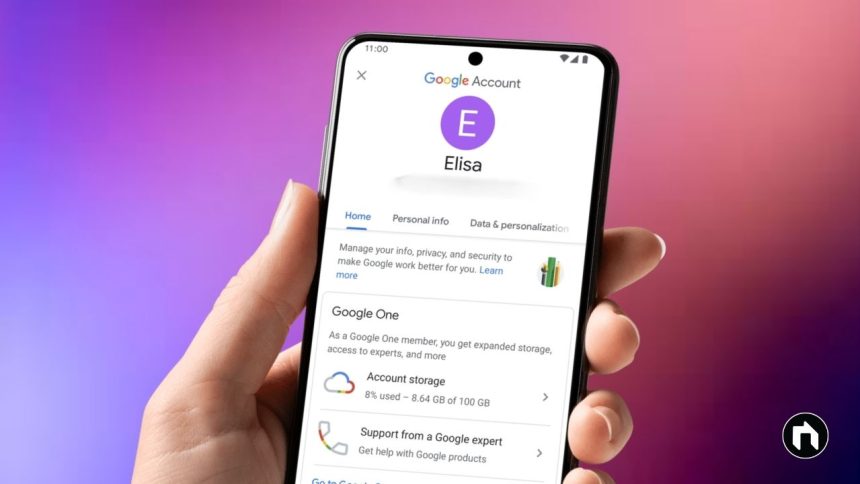
Removing a Google account from your Android phone is a straightforward process, but it’s important to understand what happens when you do this. Removing an account will delete all the data associated with it from your device, such as emails, contacts, calendar events, and app data synced to that Google account. This guide will help you safely remove a Google account when switching devices, selling your phone, or troubleshooting syncing issues.
Contents
Why Remove a Google Account?
- Switching to a new Google account on your device
- Preparing your phone for resale or handover
- Fixing syncing or account-related errors
- Protecting your privacy when no longer using the device
Important Before You Remove an Account
- Backup important data connected to your Google account (photos, contacts, files) using Google Drive or other storage options.
- Removing the account signs you out of services such as Gmail, Google Play Store, Google Photos, and more on the device.
- You can always add the same or another Google account back later.
Method 1: Remove Google Account via Android Settings
- Open the Settings app on your Android phone.
- Scroll down and tap Accounts or Passwords & Accounts (depending on your device).
- Find and tap the Google account you want to remove.
- Tap Remove Account at the bottom or in the options menu (three dots).
- Confirm by tapping Remove Account again. You might need to enter your device PIN or password to proceed.
- The account and all synced data will be removed from your phone.
Method 2: Remove Google Account Using Gmail App
- Open the Gmail app on your Android phone.
- Tap your profile picture at the top-right corner.
- Select Manage accounts on this device.
- Choose the Google account you want to remove.
- Tap Remove account.
- Confirm the removal.
What Happens After Removing the Account?
- Your phone will no longer sync data for the removed account.
- You will lose access to Google services like Gmail, Google Play, and Google Drive on that device for that account.
- Apps and features relying on the Google account will stop working until you add another account.
Optional: Remove Google Account Remotely
If your phone is lost or stolen, you can remove your Google account remotely to protect your data:
- On a computer or another device, sign in to your Google account.
- Go to Manage your Google Account > Security > Your devices > Manage all devices.
- Find your lost device and select Sign out or Remove.
- This action will sign your Google account out from that device, protecting your information.
Final Tips
- Always backup your important data before removing accounts.
- Removing an account does not delete the Google account itself; it only disconnects it from the device.
- You can add any Google account back at any time from Settings > Accounts > Add Account.
This step-by-step guide helps keep your data safe and your device ready for a new user or troubleshooting.
If you need help or have questions, feel free to ask in the comments!