








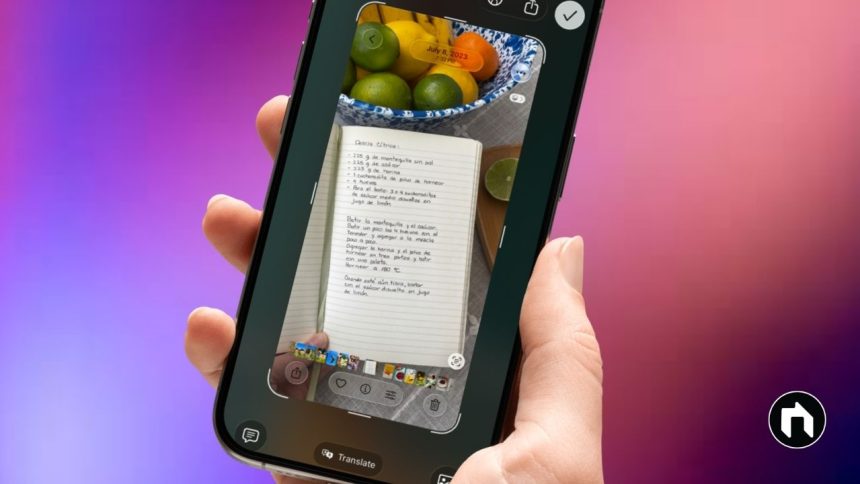
For iPhones with Face ID (No Home Button):
- Press the Side button and the Volume Up button at the same time.
- You’ll see a flash and hear a camera shutter sound, confirming the screenshot.
- A thumbnail appears in the bottom-left corner; tap it to edit, crop, doodle, or share instantly.
For iPhones with Touch ID and Side Button:
- Press the Side button and the Home button at the same time.
- The screen flashes and you’ll hear the shutter sound.
- Tap the thumbnail for editing or swipe it away to save.
For Older Models with Top Button:
Accessibility Methods: AssistiveTouch, Siri, and Back Tap
AssistiveTouch:
Contents
- Go to Settings > Accessibility > Touch > AssistiveTouch and turn it on.
- Add Screenshot to the AssistiveTouch menu. Tap the virtual button on screen, select Device > More > Screenshot to capture.
Back Tap:
- On supported models (iOS 14+), go to Settings > Accessibility > Touch > Back Tap.
- Set Double Tap or Triple Tap to “Screenshot.” Double or triple tap the back of your iPhone to take a screenshot.
Siri:
Shortcut Method
- Create a custom shortcut in the Shortcuts app with the “Take Screenshot” action to automate the process with Siri or one tap.
Where to Find Your Screenshots
Screenshots on iPhones are automatically saved to the Photos app, and you can annotate, crop, or share them directly from the thumbnail or within Photos. Full-page screenshots of web pages can also be taken in Safari by tapping “Full Page” after you capture.