








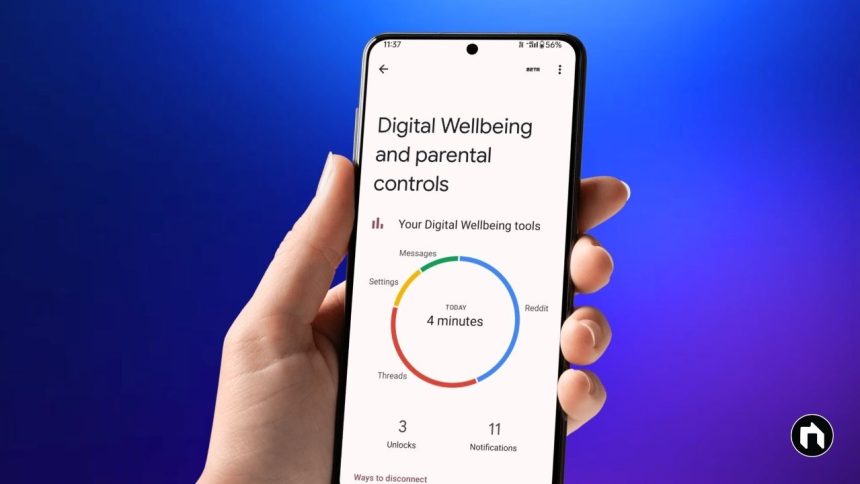
In today’s digital age, monitoring your screen time is essential to maintain a healthy balance between your digital and real life. Android phones come with built-in features that help you track and manage your screen time easily.
What Is Screen Time?
Screen time is the amount of time you spend actively using your device or apps. Monitoring it helps you understand your usage patterns and can assist in developing better digital habits.
Steps to Check Screen Time on Android
The primary tool for checking screen time on Android is the Digital Wellbeing & parental controls feature, available natively on most modern Android devices.
Step 1: Open Settings
- Unlock your phone and open the Settings app from the home screen or app drawer.
Step 2: Navigate to Digital Wellbeing & parental controls
- Scroll down and tap on Digital Wellbeing & parental controls.
- On some Android versions, it may appear as just Digital Wellbeing or Screen Time.
Step 3: Access the Dashboard
- Tap on Dashboard or Screen time inside the menu.
- Here, you’ll see a pie chart or a list showing the total screen time for the current day along with a breakdown of individual app usage.
Step 4: View Detailed Usage
- Tap on any app displayed to see how long you’ve used it during the day.
- You can also see the number of notifications received and the number of times you unlocked your phone.
Step 5: View Weekly or Monthly Reports (if available)
- Some devices or Android skins offer weekly or monthly reports.
- Tap the graph icon or “Weekly report” to get a summary of your screen time trends.
Additional Features in Digital Wellbeing
- App Timers: Set daily limits on specific apps to curb excessive usage. Once you’ve reached the limit, the app icon will be greyed out.
- Focus Mode: Temporarily pause distracting apps to minimize interruptions.
- Wind Down: Helps you disconnect at night with grayscale and Do Not Disturb mode.
Alternative Methods to Track Screen Time
- Third-party Apps: Apps like ActionDash and StayFree offer more detailed screen time analytics.
- Carrier or OEM Apps: Some phone manufacturers or carriers provide their own screen time tracking features.
- Google Family Link: For parents monitoring kids’ device usage.
Why Monitor Screen Time?
- Helps prevent smartphone addiction.
- Promotes better focus and productivity.
- Assists in maintaining better sleep hygiene by reducing nighttime usage.
- Facilitates healthier digital habits for both adults and children.
By regularly checking your screen time and using Digital Wellbeing tools, you can gain better control over your device usage and improve your overall digital health.
This guide works for most Android phones including Samsung Galaxy series, Google Pixel, OnePlus, and other Android-based devices running Android 9 or later.