








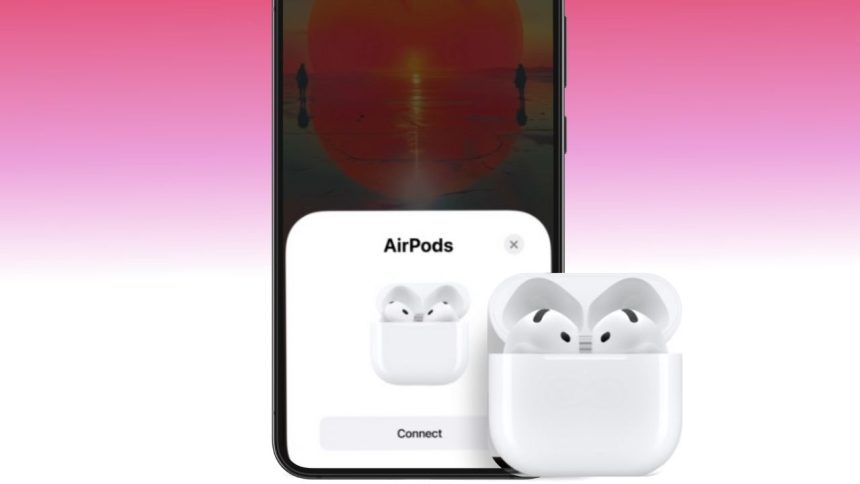
Connecting AirPods to an Android device is easy and enables you to enjoy Apple’s wireless earbuds with your Android phone or tablet. While some Apple-specific features won’t work, AirPods deliver excellent audio and convenience via Bluetooth on any Android device. Here is a detailed step-by-step guide to help you connect your AirPods to Android.
Contents
Step 1: Charge Your AirPods
Ensure your AirPods and their charging case are fully or partially charged for a smooth setup.
Step 2: Turn On Bluetooth on Android
- Open the Settings app on your Android device.
- Navigate to Connections or Bluetooth settings depending on your Android version.
- Turn on Bluetooth and keep the Bluetooth settings screen open for easy access.
Step 3: Put AirPods in Pairing Mode
- Keep the AirPods inside their charging case and open the lid.
- Press and hold the small setup button on the back of the AirPods case for about 5 seconds until the LED indicator flashes white, signaling pairing mode.
- For AirPods Max, press and hold the noise control button until the status light flashes white.
Step 4: Pair AirPods with Android Device
- On your Android Bluetooth screen, scan for available devices.
- Your AirPods will appear in the list — commonly named “AirPods,” “AirPods Pro,” or “AirPods Max.”
- Tap the AirPods name to initiate connection. Confirm pairing if prompted.
- Once connected, the AirPods will show as “Connected” in Bluetooth settings.
Step 5: Use Your AirPods with Android
- You can now use your AirPods for listening to music, watching videos, making calls, and more.
- Note that Apple-specific features like automatic device switching, Siri, battery status notifications, and customized touch controls won’t work natively on Android.
- Third-party apps may offer some additional controls and battery info for AirPods on Android.
Troubleshooting Tips
- If AirPods don’t show up, reset them by holding the setup button for 15 seconds until the LED flashes amber then white.
- Toggle Bluetooth off and on again on your Android device and try pairing again.
- Keep AirPods and your device close during the pairing process.
By following these simple steps, you can easily connect your AirPods to any Android device and enjoy wireless audio with great comfort and portability—even outside the Apple ecosystem.
This guide covers everything Android users need to know to pair and use AirPods effectively.