






Summary
Samsung’s Galaxy Z TriFold does not auto-transition apps from the cover screen to the main display when unfolded by default, unlike the Z Fold series. Enable “Continue apps on main screen” in Settings > Display for seamless continuity, though it lowers screenshot resolution to prevent app restarts due to Android scaling.
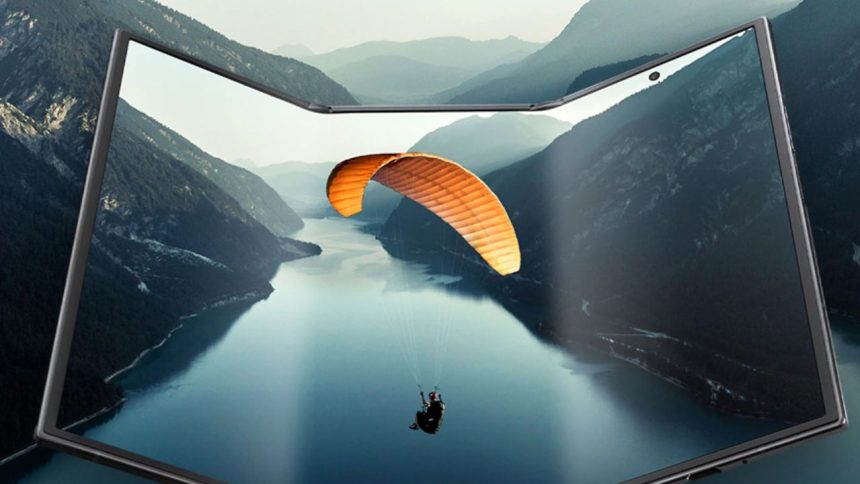
Samsung’s upcoming Galaxy Z TriFold does not automatically shift apps from the cover screen to the main display when unfolded, unlike the Galaxy Z Fold series. This feature requires manual activation through settings, raising questions about Samsung’s default UI choice.
How to Enable App Continuity
Users can turn on the “Continue apps on main screen” toggle found under Settings > Display. Once enabled, active apps seamlessly move to the unfolded inner screen without restarting. The process, highlighted by reports from Android Authority, ensures smooth multitasking on the TriFold’s expansive display.
Why the Lower Screenshot Resolution?
Samsung includes a warning that enabling this reduces screenshot resolution due to Android’s screen scaling mechanics. Without this adjustment, the system might interpret the transition as a configuration change, forcing apps to reload and disrupting workflow. This design prioritizes app stability over image quality during unfolds.