








Facebook X-twitter Youtube Instagram Threads
TechHounder
Newsletter
  • News
    • Gadgets
    • Software
    • Technology News
  • Reviews
    • Smartphones
    • Laptops & PCs
    • Wearables
    • Tablets
    • Home Tech
    • Software & Apps
    • Tech Accessories
  • The Best
  • How-To’s & Guides
    • Buying Guides
    • Product Comparisons
    • Tech Tips
    • Tutorials
  • Stories
  • More
    • Contact Us
    • About Us
Reading: How to Create, Manage, and Secure Your Samsung Account on Any Device
  • Trending :-
  • Top News
  • News
  • Apple
  • Samsung
  • google
  • How-To's & Guides
  • OpenAI
  • Android 16
  • Nothing
  • Xiaomi
Font ResizerAa
TechHounderTechHounder
  • News
  • Reviews
  • The Best
  • How-To’s & Guides
  • Stories
  • More
Search
  • News
    • Gadgets
    • Software
    • Technology News
  • Reviews
    • Smartphones
    • Laptops & PCs
    • Wearables
    • Tablets
    • Home Tech
    • Software & Apps
    • Tech Accessories
  • The Best
  • How-To’s & Guides
    • Buying Guides
    • Product Comparisons
    • Tech Tips
    • Tutorials
  • Stories
  • More
    • Contact Us
    • About Us

Popular Post

PlayStation Remote Play Coming to Afeela EV Displays in 2026
News

PlayStation Remote Play Coming to Afeela EV Displays in 2026

Featured Reviews

Best Android Tablets in 2024 : You Can Buy

Squid-Game-Season-2-.webp
News

Squid Game: Season 2 Release Date Announced, Finale Confirmed

News

POCO M6 Plus 5G: A Mid-Range Contender with Impressive Specs

Follow US
  • News
  • Deals
  • Android
  • Smart Things
© 2024 Tech Hounder.
TechHounder > How-To's & Guides > How to Create, Manage, and Secure Your Samsung Account on Any Device
How-To's & Guides

How to Create, Manage, and Secure Your Samsung Account on Any Device

Abhi Soni
Last updated: September 20, 2025 1:35 pm
By Abhi Soni
Share
How to Create, Manage, and Secure Your Samsung Account on Any Device
Image Credit: TechHounder

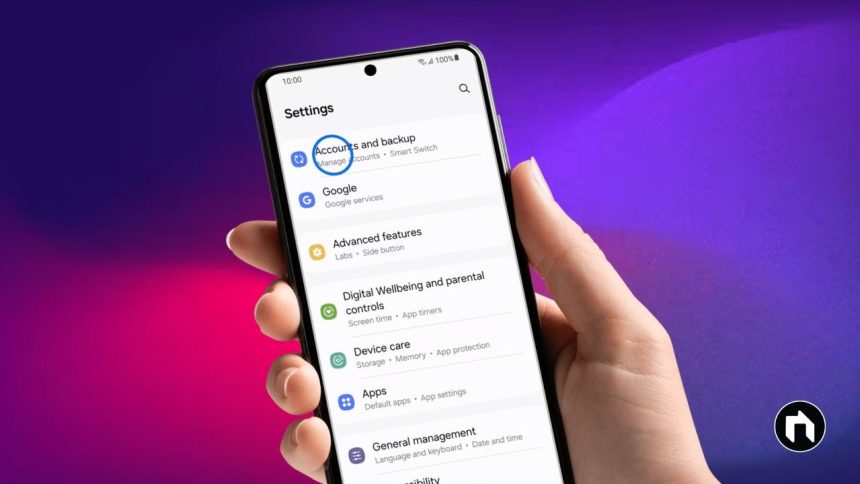
A Samsung account is more than just a login—it connects all your Galaxy devices and gives you access to features like SmartThings, Samsung Pay, Samsung Cloud, and device syncing. It also makes it easier to back up data, restore information, and keep everything safe with two-step verification. Here’s a simple guide to help you set up, sign in, and manage your Samsung account.

Contents
Why You Need a Samsung AccountSet Up Your Samsung Account on Phone or TabletCreate or Manage Your Account on a ComputerUsing a Samsung Account on Your Smart TVVerify Your Account with EmailTwo-Step Verification for Extra SecurityChange Account Details or PasswordLog Out or Remove Your AccountDelete Your Samsung Account

Why You Need a Samsung Account

  • Access exclusive Samsung apps and services.
  • Sync and back up data between your phone, tablet, or TV.
  • Stay protected with security features such as two-step verification.
  • Easily reset your ID or password if you forget it.

Set Up Your Samsung Account on Phone or Tablet

  1. Open Settings and tap Samsung account at the top.
  2. Enter your email or phone number if you already have an account, or tap Create account.
  3. Follow the steps to sign in or register. You may need to complete two-step verification.
  4. Agree to the terms and policies.
  5. Verify your phone number with the code sent to you.
  6. Update your profile information, like nickname or birth date.
  7. You’ll also receive a verification email—confirm it to finish setup.

Create or Manage Your Account on a Computer

  1. Go to the official Samsung website using any browser.
  2. Click the profile icon (top-right corner) and choose Log in / Sign up.
  3. Sign in with your email or Google, or create a new account.
  4. Enter the verification code sent to you.
  5. Once logged in, go to Manage Samsung Account to edit personal details like name, phone number, or language.

Using a Samsung Account on Your Smart TV

  1. On your TV, go to Settings > General > System Manager > Samsung Account.
  2. Select Login, enter your ID and password, and confirm with the verification code sent to your phone.
  3. To update information, return to System Manager > Samsung Account > My Account and edit personal details.

Verify Your Account with Email

  • After signing up, check your email inbox for a Samsung verification mail.
  • Open the email and tap Account Verification.
  • If not in your inbox, check the spam folder.

Two-Step Verification for Extra Security

  • Every login requires a verification step.
  • You will get a security notification or SMS code on your registered device.
  • You can also use an authenticator app or backup codes for signing in.

Change Account Details or Password

  • To reset your password, use the Reset password option on the login page or visit the Samsung password reset website.
  • To change an existing password: open Settings > Your name > Security and privacy > Password, then enter your old and new password.

Log Out or Remove Your Account

  • On phone or tablet: Settings > Your name > Sign out.
  • On computer: open the Samsung website, click your profile name, and choose Log out.
  • Remember: logging out removes synced data from the device.

Delete Your Samsung Account

Deleting your account will permanently erase your purchase history, cloud data, and subscriptions.

- Advertisement -
  1. Visit the Samsung website and log in.
  2. Go to Manage Samsung Account > Delete account.
  3. Review the terms and confirm deletion.

A Samsung account is the key to unlocking the full Galaxy experience, from payments and backups to smart home control. Make sure you keep your account details updated and secure.

TAGGED:SamsungSamsung accountSamsung account manageSamsung account PCSamsung account phoneSamsung account secureSamsung account setupSamsung account TVSamsung account verificationSamsung loginSamsung two-step verification
Share This Article
Facebook Twitter Flipboard Whatsapp Whatsapp Threads Copy Link
Leave a comment Leave a comment

Leave a Reply Cancel reply

Your email address will not be published. Required fields are marked *

Must Read

News
PlayStation Remote Play Coming to Afeela EV Displays in 2026
News
HONOR Magic8 Mini Leak Shows 6.3″ Display, 4 Color Options
News
Leaked iPhone Fold Renders Reveal Squat BlackBerry Passport Design
Uncategorized
Stranger Things S5 Vol 2 Clip: Will’s Powers Flip the Script Against Vecna
News
boAt Valour Ring 1 Launched: Titanium Smart Ring with 15-Day Battery

You Might also Like

Galaxy S26 Series Could Include Four Models With Returning Plus Version
News

Galaxy S26 Series Could Include Four Models With Returning Plus Version

iPhone 18 Pro Pushes Samsung to Bring Back S9 Camera Tech
News

Samsung Revives Galaxy S9 Camera for iPhone 18 Pro Battle

Get Help in Windows 10 and 11
How-To's & Guides

Simple Ways to Get Help in Windows 10 and 11

How to Set Up Discord on PS5 and PlayStation 4 (2025 Guide)
How-To's & Guides

How to Set Up Discord on PS5 and PlayStation 4 (2025 Guide)

TechHounder
Facebook X-twitter Youtube Instagram Threads

Our mission is to be your trusted guide, steering you towards the finest products and providing invaluable insights to ensure you make informed choices from the very beginning. With a commitment to excellence, we strive to empower you with the knowledge and confidence needed to make your Android experience extraordinary. Welcome to a world where precision, reliability, and innovation converge.

Join Our Community

Receive a regular dose of valuable content directly in your inbox.
[contact-form-7 id="c04da3a" title="Newslatter"]
  • Press Center
  • About Android Hub
  • Best ProductsNew
  • Contact Us
  • Website Map
  • Functions
  • Complaint
  • Privacy Policy
  • Interest Based Ads
  • Terms of Use
  • Your Privacy Rights
  • Online BestHot
  • Subscribe to Our Blog
  • Cookie Policy
  • News
  • Gaming
  • Deals
  • Phones
  • Android
  • Smart Things

© 2024 Tech Hounder Powered By Aurous Media Group.

Welcome Back!

Sign in to your account