








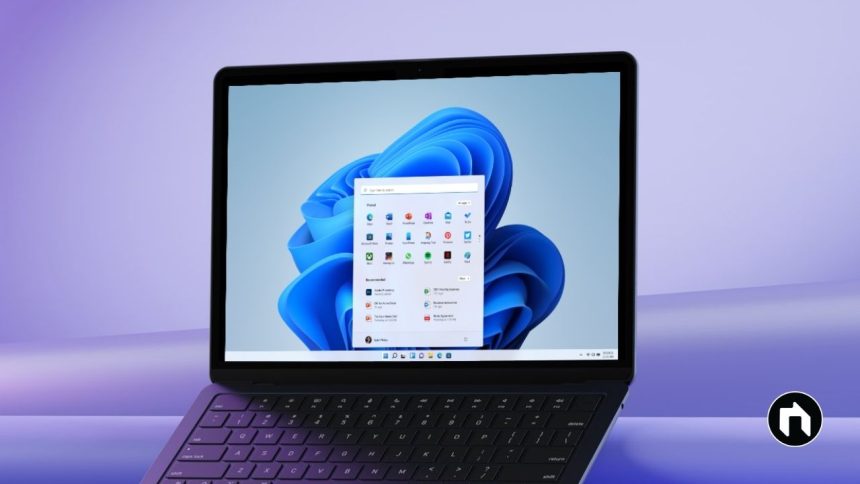
Windows Update is an essential service from Microsoft that helps keep your Windows computer secure, stable, and up to date. It works quietly in the background to find, download, and install important updates for your operating system and Microsoft software. These updates fix security issues, improve performance, add new features, and keep your computer running smoothly.
What is Windows Update?
Windows Update is a free service from Microsoft that helps keep your Windows computer safe and running smoothly. It automatically finds, downloads, and installs important updates for your computer’s operating system and other Microsoft software. These updates can fix security problems, improve performance, and add new features.
Why Are Updates Important?
When Microsoft finds security weaknesses or bugs in Windows, they release updates to fix them. Installing these updates protects your computer from viruses, hackers, and crashes. Updates also help your computer run faster and work better with new programs and hardware.
How Does Windows Update Work?
Windows Update works quietly in the background. It checks for updates regularly—usually once a week—and downloads the updates your computer needs. You can also manually check for updates anytime through the Settings app.
Types of Updates
- Security Updates: Fix holes in Windows that could be used by hackers or malware.
- Feature Updates: Add new functions or make Windows easier to use.
- Quality Updates: Improve the performance and reliability of your PC.
- Driver Updates: Update the software that controls hardware like printers, graphics cards, or keyboards.
- Cumulative Updates: Bundle many fixes in one update to reduce the number of downloads and restarts.
How to Use Windows Update
- Open the Settings app on your Windows PC.
- Go to Update & Security > Windows Update.
- Click Check for updates. Windows will look for available updates.
- If updates are found, you can choose to install them.
- Sometimes, your PC will need to restart to finish the update.
Advanced Options
Windows Update lets you:
- Pause updates temporarily.
- Set “active hours” when your PC shouldn’t restart.
- View update history to see what updates were installed.
- Choose if your PC should download updates automatically or notify you first.
Different Versions of Windows Update
- Microsoft Update: Offers updates not just for Windows but also for other Microsoft software like Office.
- Windows Update for Business: Designed for organizations to manage when and how updates are installed on many computers.
Tips for Smooth Windows Updates
- Make sure your PC is connected to the internet.
- Save your work before installing updates because a restart might be needed.
- Keep your PC on or plugged in during big updates.
- If an update causes trouble, you can uninstall it from the update history.
Windows Update is essential for keeping your computer safe, stable, and up to date with the latest features. By regularly installing updates, you help protect your PC from security risks and enjoy an improved computing experience.
If you want, I can also create a short guide on how to check for updates or troubleshoot common Windows Update problems. Would that be helpful?