








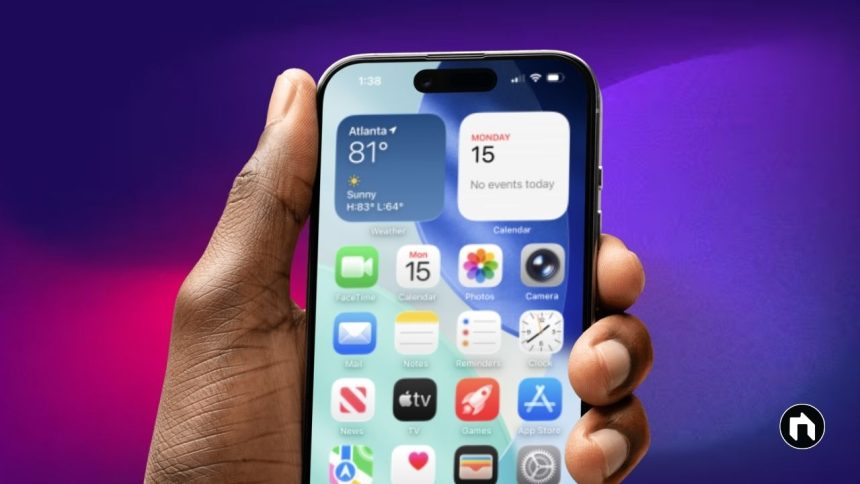
Improving battery life on an iPhone involves a mix of smart settings, habits, and new iOS features designed to give lasting power throughout the day. Here is a complete guide to optimizing iPhone battery life and fixing common issues.
Update and Use New iOS Features
Upgrading to the latest iOS ensures your device benefits from Apple’s most recent battery optimizations. Use new features like Adaptive Power Mode (iOS 26), which automatically dims the screen, limits background tasks, and toggles Low Power Mode when needed. To enable it, go to Settings > Battery > Power Mode and turn on Adaptive Power.
Enable Low Power Mode
Low Power Mode cuts down on background activity, email fetch, and certain visual effects, extending usage when battery is low. Activate it through Settings > Battery or quickly with Control Center.
Optimize Charging
Avoid full discharges and always charging to 100%; modern iPhones let you set a Charge Limit (80% or 90%) for healthier battery chemistry. Keep “Optimized Battery Charging” enabled in Settings > Battery > Battery Health & Charging.
Limit Power-Hungry Features
- Disable Location Services for apps that don’t need them (Settings > Privacy > Location Services).
- Switch off Background App Refresh or set it to Wi-Fi only (Settings > General > Background App Refresh).
- Turn off visual effects, such as Live Wallpapers and excessive widgets.
- Use Dark Mode, especially on OLED iPhones, to save power (Settings > Display & Brightness).
- Lower screen brightness or set to auto-brightness.
Audit and Manage Apps
Regularly check which apps drain your battery (Settings > Battery). Limit or uninstall heavy users. Close unused apps and avoid heavy usage (like games or video editing) when the battery is low.
Manage Connectivity
- Turn off unnecessary Wi-Fi, Bluetooth, and cellular data when not needed.
- If in poor signal areas, switch off 5G and use LTE or Airplane Mode.
Temperature and Charging Tips
- Keep the iPhone within 0° to 35°C; avoid sunlight, hot cars, and charging with a case.
- Always use certified chargers to avoid damaging the battery.
Control Automatic Functions
- Disable automatic downloads and video autoplay in App Store settings.
- Turn off iCloud backup over cellular connections.
Monitor Battery Health
Check battery health often (Settings > Battery > Battery Health & Charging). If the Maximum Capacity drops below 80%, consider replacing the battery for optimal performance.
Additional Handy Settings
- Turn off keyboard sounds and haptics if not required.
- Shorten Auto-Lock period (Settings > Display & Brightness > Auto-Lock).
- Limit system services and notifications.
Table: Quick Checklist for iPhone Battery Life
| Action | Where To Find |
|---|---|
| Enable Low Power Mode | Settings > Battery |
| Set Charge Limit (80%/90%) | Settings > Battery > Battery Health & Charging |
| Disable Background App Refresh | Settings > General > Background App Refresh |
| Use Adaptive Power (iOS 26+) | Settings > Battery > Power Mode |
| Reduce Screen Brightness | Control Center/Settings > Display & Brightness |
| Turn on Dark Mode | Settings > Display & Brightness |
| Limit Location Services | Settings > Privacy > Location Services |
| Check Battery Usage | Settings > Battery |
| Monitor Battery Health | Settings > Battery > Battery Health & Charging |
Small tweaks to daily habits and using these settings can make a noticeable difference in battery life, letting any iPhone last longer with less frequent charging.